

Email Delivery
Operately requires email functionality to send notifications, invitations, and password reset emails. This guide explains how to configure email delivery for your self-hosted installation.
Email delivery options#
Operately supports two methods for email delivery:
- SendGrid API (recommended for simplicity)
- SMTP (compatible with most email providers)
Accessing Email Configuration#
Configuration is done through the Admin Panel:
- Log in with a site administrator account.
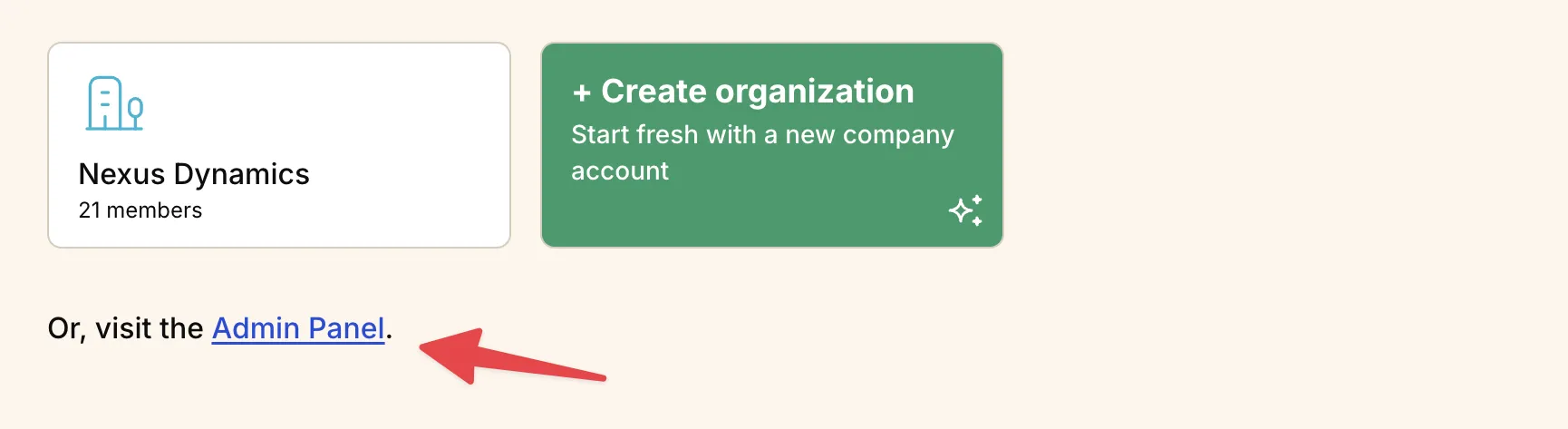
- From the lobby page (before selecting a company), click the Admin Panel link.
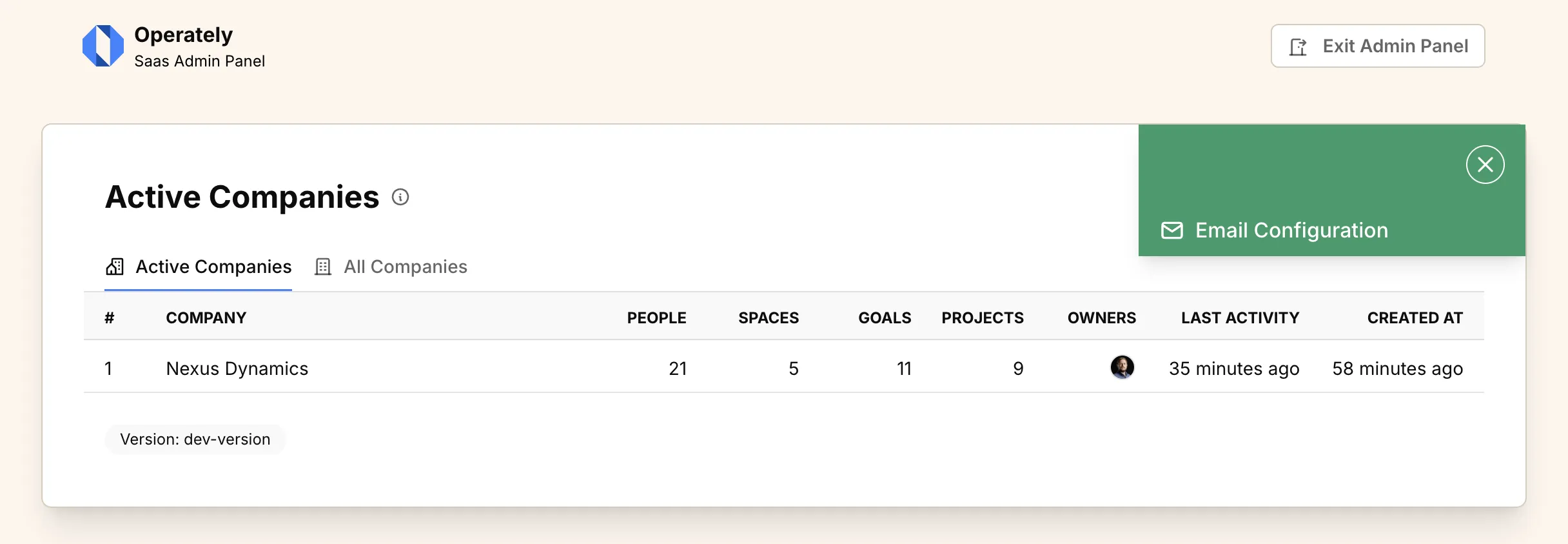
- In the top-right corner, click the … options button.
- Select Email Configuration from the dropdown menu.
SendGrid API configuration#
SendGrid is a reliable email delivery service that’s easy to set up and scale.
Prerequisites#
- Create a SendGrid account
- Verify your sender identity (domain or single sender)
- Generate an API key with mail sending permissions
Configuration steps#
-
Create an API key:
- Log in to your SendGrid dashboard
- Go to Settings > API Keys
- Click Create API Key
- Choose Restricted Access
- Grant Mail Send permissions
- Copy the generated API key
-
Configure in Operately:
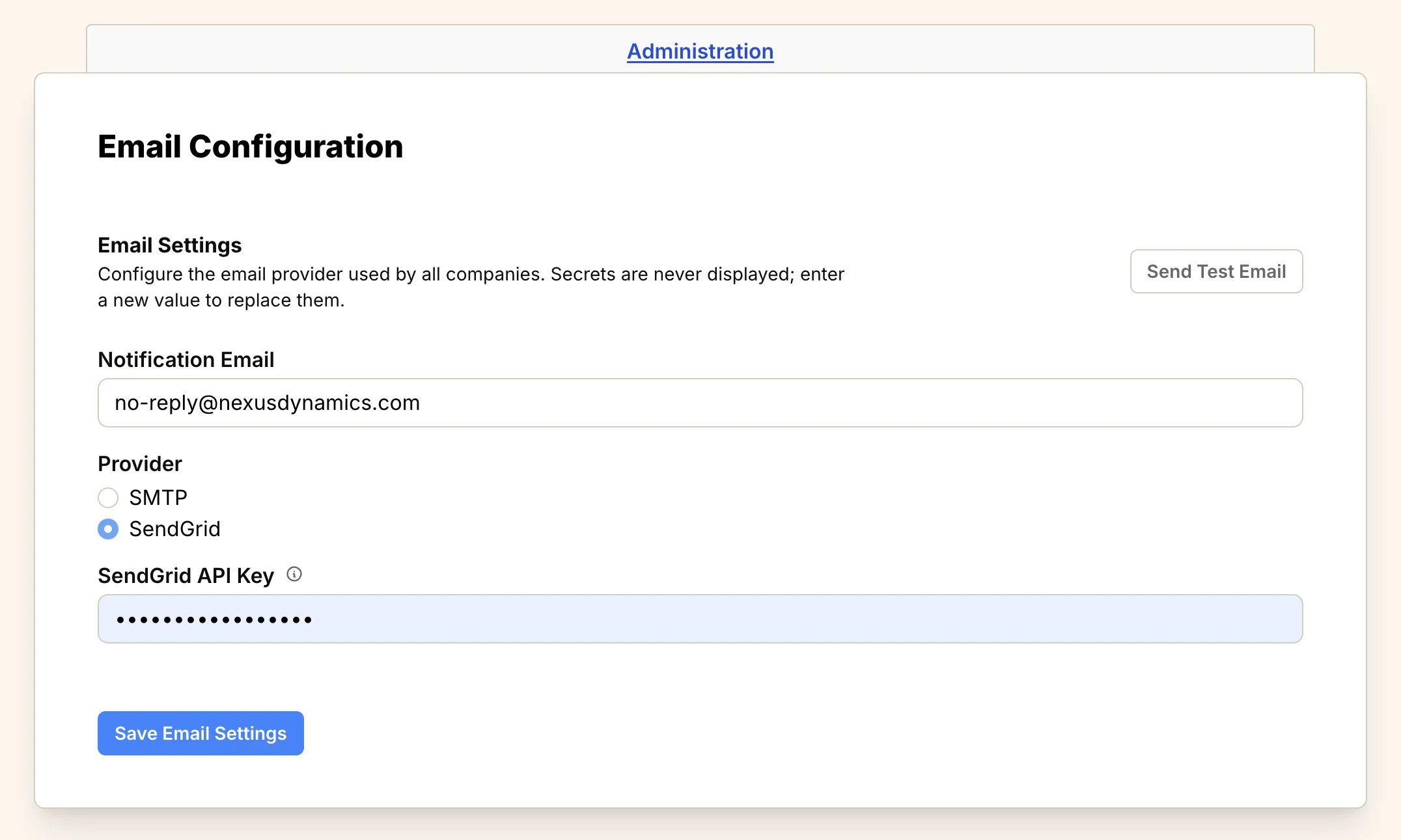
- In the Email Configuration form, enter your Notification Email (e.g.,
no-reply@nexusdynamics.com). - Select SendGrid as the Provider.
- Paste your API key into the SendGrid API Key field.
- Click Save Email Settings.
- In the Email Configuration form, enter your Notification Email (e.g.,
SMTP configuration#
SMTP is a standard protocol supported by most email providers including Gmail, Outlook, AWS SES, Mailgun, and others.
Common SMTP providers#
| Provider | SMTP Server | Port | Security |
|---|---|---|---|
| Gmail | smtp.gmail.com | 587 | STARTTLS |
| Outlook | smtp-mail.outlook.com | 587 | STARTTLS |
| AWS SES | email-smtp.region.amazonaws.com | 587 | STARTTLS |
| Mailgun | smtp.mailgun.org | 587 | STARTTLS |
| Custom | your-mail-server.com | 587/465 | STARTTLS/SSL |
Configuration steps#
-
Gather SMTP credentials:
- SMTP server hostname
- Port number (usually 587 for STARTTLS or 465 for SSL)
- Username and password
- Security method (STARTTLS or SSL)
-
Configure in Operately:
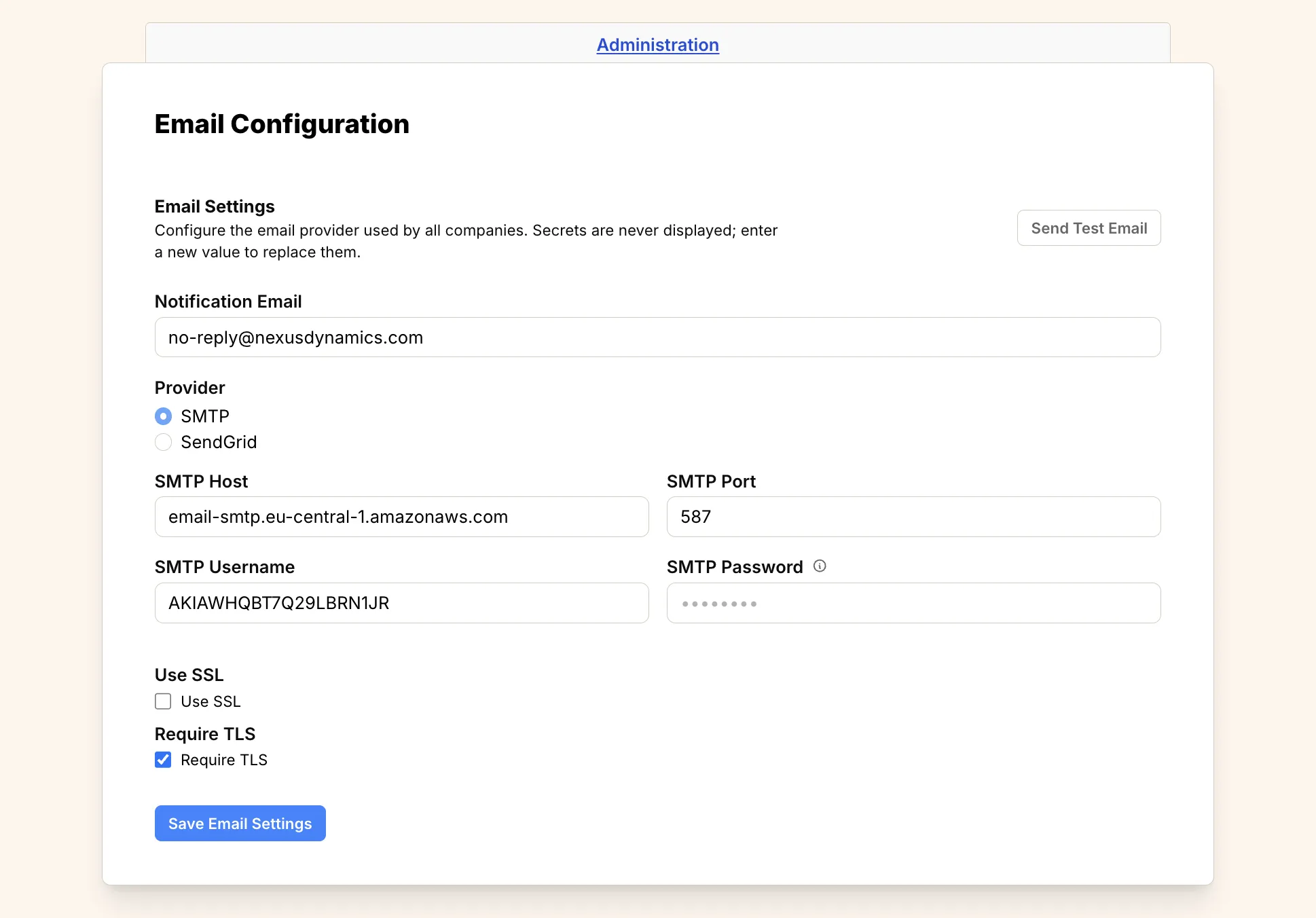
- In the Email Configuration form, enter your Notification Email.
- Select SMTP as the Provider.
- Enter the SMTP Host, SMTP Port, SMTP Username, and SMTP Password.
- Check Use SSL if your provider uses SSL (typically port 465).
- Check Require TLS if your provider uses STARTTLS (typically port 587).
- Click Save Email Settings.
Provider-specific settings#
Gmail#
- Enable 2-factor authentication on your Google account
- Generate an App Password
- Use the app password as your SMTP password
- Host:
smtp.gmail.com - Port:
587 - Username:
your-email@gmail.com - Password:
your_app_password - Require TLS: Checked
AWS SES#
- Verify your domain or email address in AWS SES
- Create SMTP credentials in the AWS SES console
- Choose the appropriate region endpoint
- Host:
email-smtp.us-east-1.amazonaws.com(varies by region) - Port:
587 - Username:
your_ses_username - Password:
your_ses_password - Require TLS: Checked
Mailgun#
- Add and verify your domain in Mailgun
- Get your SMTP credentials from the domain settings
- Host:
smtp.mailgun.org - Port:
587 - Username:
postmaster@your-domain.com - Password:
your_mailgun_password - Require TLS: Checked
Testing email configuration#
After configuring email delivery, test that it’s working correctly:
-
Send a test email:
- On the Email Configuration page, click the Send Test Email button.
- In the form that opens, enter a Recipient email address.
- Enter a Subject and Body.
- Click Send Test Email.
- You will see a success or error message indicating if the configuration works.
-
Test password reset:
- Log out of your account.
- Click “Forgot password?” on the login screen.
- Enter your email address and click “Reset Password”.
- Check your inbox for the password reset email.
-
Check server logs: If you encounter issues, check the logs for detailed error messages:
docker compose logs | grep email
Troubleshooting#
Common issues#
Authentication failed:
- Double-check your username and password
- Ensure 2FA and app passwords are configured correctly
- Verify your SMTP provider allows the connection
Connection timeout:
- Check firewall rules allow outbound connections on the SMTP port
- Verify the SMTP hostname is correct
- Try increasing the timeout value (if configurable)
Email not delivered:
- Check spam/junk folders
- Verify sender reputation with your email provider
- Review email provider logs for bounce/rejection reasons
SSL/TLS errors:
- Ensure the security method matches your provider’s requirements
- Try different ports (587 for STARTTLS, 465 for SSL)
- Check if your provider requires specific TLS versions
Security considerations#
- Use app passwords: Never use your main account password for SMTP
- Enable encryption: Always use STARTTLS or SSL when available
- Limit permissions: Use email service accounts with minimal required permissions
- Monitor usage: Regularly review email sending patterns and limits
- Rotate credentials: Periodically update API keys and passwords